Split Image to PDF for Printing
Print one large image across several A4 or US Letter sheets. Choose how many sheets wide your poster should be, download one PDF, then print and join the pages together.
Choose your poster image
Choose paper & poster size
Upload an image to preview your poster
Choose how many sheets wide it should be. We calculate the height and keep the complete image.
✓ Runs locally in your browser
✓ One PDF with ordered pages
✓ No signup or watermark
A4 + Letter
Real paper dimensions in every PDF page
Up to 100 pages
Automatic rows with the original image ratio
100% local
Your image stays inside your browser
One file, every sheet
What this printable PDF tool does
This tool takes one image and places it across multiple correctly sized PDF pages. The downloaded printable PDF is ready for tiled printing on an ordinary home or office printer. Instead of saving and arranging separate picture files, you get one PDF with pages already ordered from left to right and top to bottom.
Use it for wall posters, classroom displays, sewing or craft patterns, tabletop maps, event signs, photo enlargements, and presentation boards. The browser calculates the required rows from the source ratio, so the printable PDF shows the complete image rather than forcing it into a distorted grid.
This page is intentionally different from our image tile printing tool. That tool downloads separate image pieces; this one creates a single multi-page PDF with paper settings, overlap, trim marks, and page numbers.
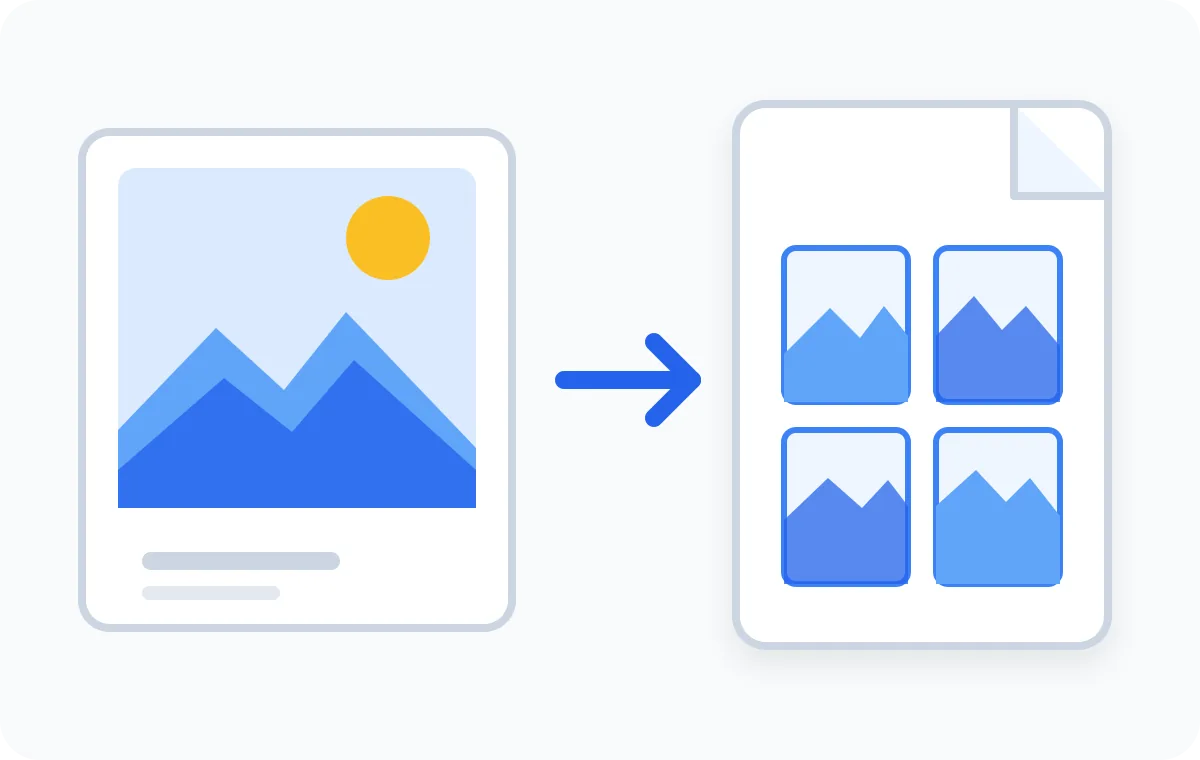
How to split an image to PDF for printing
The complete workflow stays on one page: upload the source, check the visual page grid, and generate the printable PDF when the page count and assembled poster size look right.
Upload one image
Choose a JPG, PNG, or WebP file. The image stays on your device while the browser prepares the printable PDF.
Set the paper layout
Pick A4 or US Letter, portrait or landscape, pages across, margins, overlap, trim marks, and output quality.
Generate and print the PDF
Download one ordered multi-page PDF, print it at actual size, then trim and join the sheets into the complete poster.
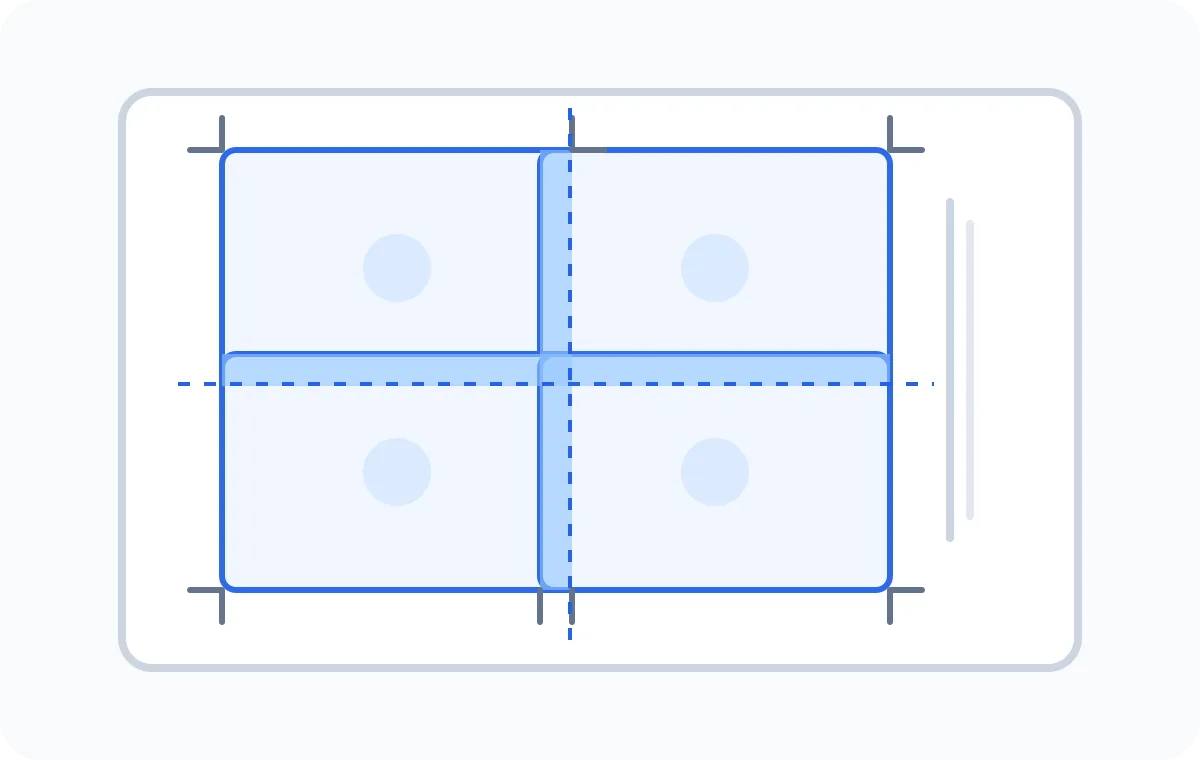
Set A4 or Letter pages without guessing
Every control changes the actual printable PDF, not only the preview. A4 uses 210 × 297 mm sheets, while US Letter uses 8.5 × 11 inch sheets. Portrait works well for tall page tiles; landscape gives each row more width and can reduce the number of pages needed for a wide image.
- Pages across
- Controls the final poster width. The page count below the image is calculated automatically to preserve its proportions in the printable PDF.
- Margins and overlap
- Margins protect content from non-printable printer edges. Overlap repeats a narrow strip on neighboring pages so you can align, trim, and tape the poster with fewer visible gaps.
- Trim marks and page numbers
- Optional marks show the printable corners, while page numbers keep a large poster PDF in the correct assembly order.
Choose the right image quality for a poster PDF
PDF quality cannot restore detail that is missing from the source. Start with the largest image available, then use the estimated DPI shown in the tool to balance poster size, sharpness, and file size.
| Setting | Best for | Practical result |
|---|---|---|
| 150 DPI | Draft layouts and distant viewing | Smaller printable PDF and faster generation |
| 200 DPI | Most wall posters and classroom displays | Good detail without an unnecessarily large PDF |
| 300 DPI | Fine text, line art, patterns, and close viewing | Best detail when the source image has enough pixels |
Print image on multiple pages, then assemble once
A multi-page printable PDF is useful whenever the finished design is larger than one sheet. The same workflow can produce a small four-page sign, a wide banner, or a detailed wall-sized poster without changing printers. Each PDF page contains the correct part of the source image, and optional overlap gives you a shared alignment area between sheets.
- Wall art and photo enlargements
- Classroom posters and event signs
- Craft, sewing, and cutting patterns
- Maps, game boards, and diagrams
- Temporary banners and presentation boards
- Reference grids and large templates
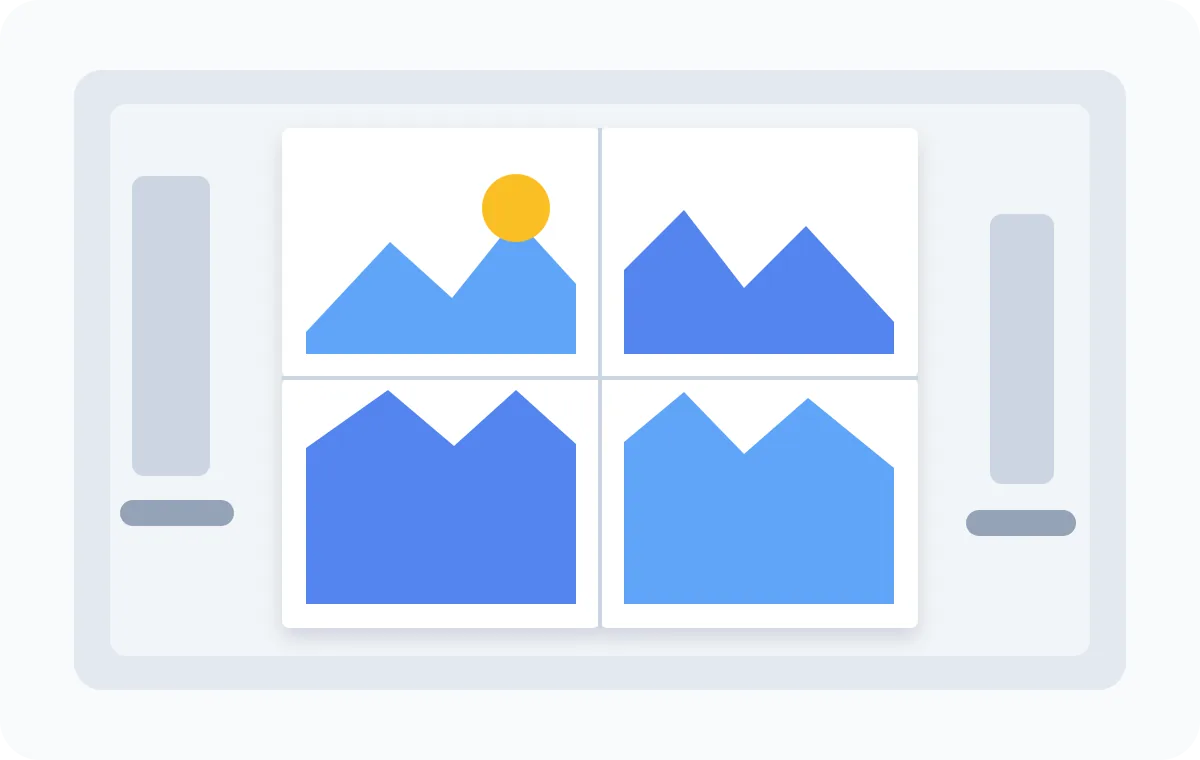
Printable PDF or separate image tiles?
Use this page
One printable PDF
Choose this workflow when you want paper-sized pages in one file, consistent margins, overlap, trim marks, page numbers, and a simple print queue. The printable PDF is the easiest output for a home-printer poster.
Use the related tool
Separate JPG, PNG, or WebP tiles
Choose Split Image for Printing when you need individual image files for another design program, manual placement, or a printer workflow that does not use PDF.
Private processing, honest limits, and safer printing
The source image and printable PDF remain on your device. No account is required, and the page does not send the image to a conversion server. This keeps private photos local and removes upload time from the workflow.
Browser limits still matter. A very large 300 DPI poster PDF needs more memory than a four-page draft, so use 150 or 200 DPI if a phone or older computer struggles. The generator supports up to 100 pages and rasterizes transparent images onto a white background for predictable printing.
Printer drivers may add their own non-printable margins or scaling. Print one page first, choose Actual size or 100%, and compare the physical result before printing the complete PDF. If the driver clips trim marks, increase the margin in the tool and generate a new printable PDF.
Printable PDF questions
Can I split one image into a multi-page PDF?
Yes. Upload one JPG, PNG, or WebP image, choose how many pages wide the finished poster should be, and generate one printable PDF. The tool calculates the number of rows automatically so the complete image keeps its original proportions.
Is this printable PDF tool free?
Yes. You can create and download a printable PDF without an account, payment, watermark, or software installation. The PDF is generated locally in your browser.
Does splitimage.im upload my image?
No. Your source image is decoded and converted into the printable PDF on your device. It is not sent to our server, which also means the tool can keep working without waiting for a file upload.
Can I print the PDF on A4 and US Letter paper?
Yes. Choose A4 or US Letter and select portrait or landscape orientation before generating the PDF. Every page in the downloaded file uses the selected paper dimensions.
How many pages can my poster use?
You can choose from 1 to 10 pages across. The tool calculates the required rows and supports up to 100 PDF pages in one export. Very tall images may need fewer pages across to remain under that limit.
What do margin and page overlap mean?
Margin keeps image content away from the paper edge and leaves room for page numbers or trim marks. Overlap repeats a narrow strip of the image on neighboring sheets, making the printed pages easier to align and tape together.
What resolution do I need for a sharp poster PDF?
For most posters, aim for at least 150 effective DPI at the final assembled size; 200 DPI is a useful balance and 300 DPI is best for detailed artwork. The preview estimates source DPI so you can reduce the poster size if the image may print soft.
How should I print the PDF at the correct size?
Open the downloaded PDF in a standard PDF viewer and select Actual size or 100% scale. Disable Fit to page unless you intentionally want the printer to resize every sheet, and print one test page before committing to the full poster.
Can I create the printable PDF on iPhone, Android, or Mac?
Yes. The tool works in a modern browser on phones, tablets, Windows, macOS, ChromeOS, and Linux. Large high-quality posters use more memory, so a desktop browser may be more comfortable for very large images.
Can I upload an existing PDF as the source?
Not on this page. This tool accepts image files and creates a new printable PDF from the image. It does not split or edit an existing PDF document, so convert the required PDF page to an image first if you own the content and need this workflow.
Can I download separate image tiles instead of a PDF?
Yes, but use the separate Split Image for Printing tool for that job. It downloads numbered JPG, PNG, or WebP tiles, while this page is specifically designed to create one ordered multi-page printable PDF.
Why does changing orientation change the number of pages?
Portrait and landscape paper have different printable widths and heights. The tool preserves the source image ratio, so a wider printable area can reduce the required rows while a narrower page may create a taller poster PDF.
Create your printable PDF
Upload an image, preview the ordered sheets, and generate a printable PDF for your home printer without sending the source file anywhere.
Split image to PDF