Browser-only panorama cutter
Panorama Splitter for Instagram
Turn one wide landscape, skyline, AI artwork, or product scene into seamless 4:5 carousel slides. Preview the crop, keep the panels aligned, and export numbered files without uploading your image.
Drop a wide image here or click to choose
JPG, PNG, WebP, GIF, BMP, AVIF, up to 20 MB
Need a different workflow? Instagram Carousel Splitter · Instagram Grid Maker · Full Image Splitter
What is a Panorama Splitter?
A panorama splitter cuts one extra-wide photo into multiple matched panels so the original scene can be viewed without shrinking it into a tiny landscape post. For Instagram, the strongest version is usually a 4:5 carousel panorama: each slide is a tall portrait panel, but swiping across the post reveals one continuous image.
This page focuses on panoramic photos and wide creative layouts: landscapes, city skylines, architecture, travel shots, group photos, product reveals, AI-generated wide art, and long visual stories that lose detail when uploaded as a single landscape image.
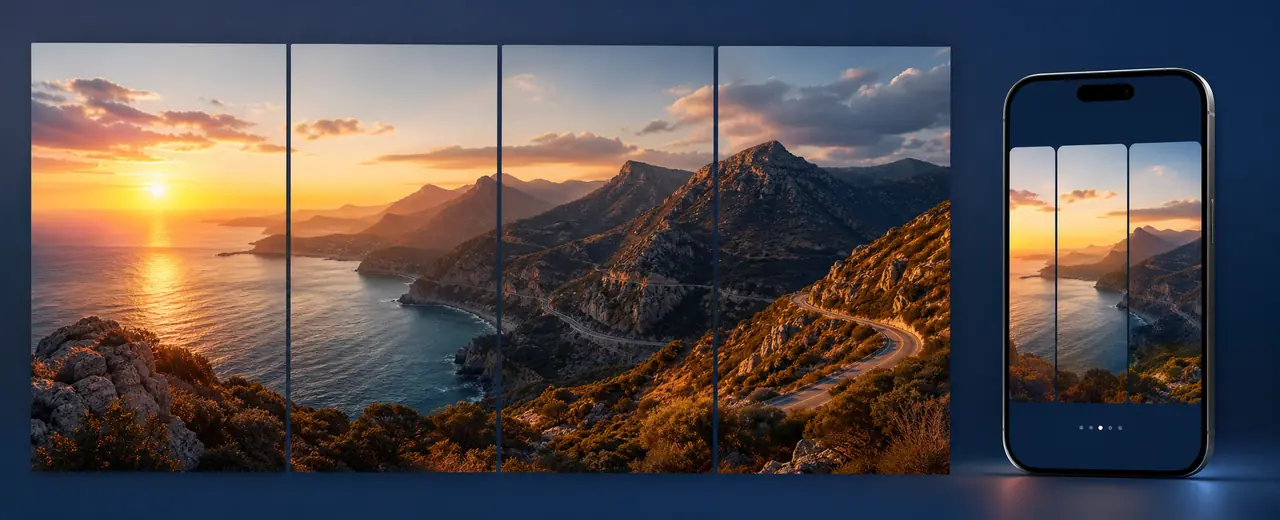
Why split a panorama instead of posting one wide image?
More visible detail
A single landscape photo often appears small in the feed. Splitting it into 4:5 panels lets viewers inspect the scene at a larger size.
Better swipe experience
A continuous left-to-right panorama gives people a reason to swipe through every panel instead of stopping at the first frame.
Cleaner storytelling
You can use each slice as a chapter: establish the scene, reveal the subject, then finish with the widest context.
Recommended panorama sizes
Use 1080 x 1350 pixels per slide for the standard 4:5 Instagram carousel format. Build the source image by multiplying the width by the number of slides.
| Slides | Source canvas | Exported files | Best use |
|---|---|---|---|
| 2 slides | 2160 x 1350 px | 2 files, each 1080 x 1350 | Before/after reveals, short wide photos |
| 3 slides | 3240 x 1350 px | 3 files, each 1080 x 1350 | Landscapes, city skylines, group photos |
| 4 slides | 4320 x 1350 px | 4 files, each 1080 x 1350 | Travel stories, architecture, product scenes |
| 5-10 slides | 5400-10800 x 1350 px | 5-10 matched files | Long illustrations, campaigns, detailed explainers |
How to split a panoramic photo for Instagram
Use the highest-quality panorama you have. If you are designing from scratch, create a canvas that matches your intended slide count.
Faces, product names, and small text should not sit exactly where two slides meet. Move the crop until the cuts feel intentional.
The tool creates matched portrait slides and packages them in a ZIP so the order is clear when you upload.
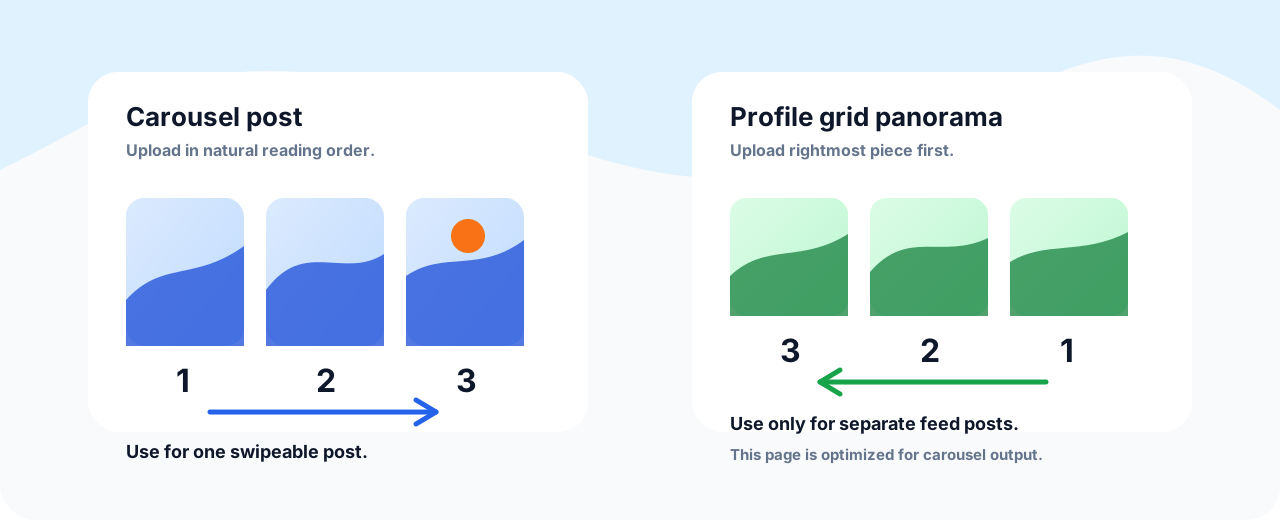
Upload slide 1, slide 2, slide 3, and so on inside a single Instagram carousel post. Do not upload them as separate posts unless you want a profile grid effect.
Carousel order vs profile grid order
For a carousel panorama, upload left to right: slide 1 first, then slide 2, then slide 3. That keeps the swipe direction natural.
For a profile grid panorama made from separate posts, the order is reversed because the newest post appears first on the profile. This page is optimized for carousel panoramas, not profile puzzles.
Quality checklist before you post
- Export all slides at the same width, height, and file format.
- Use JPG for photography and PNG/WebP for text-heavy graphics.
- Preview the first slide as a standalone hook because it decides whether people swipe.
- Check every cut line at 100% zoom if your panorama includes text, faces, or product edges.
- Avoid stretching a low-resolution source across too many slides; fewer sharper panels usually look better.
- Keep a copy of the original panorama in case you need to adjust the crop after a mobile preview.
Common mistakes that make panorama posts look broken
Mixing aspect ratios
Every carousel slide should have the same ratio. If one file is square and another is portrait, Instagram may crop the sequence unpredictably.
Cutting through key subjects
A seam through a face, product label, or headline makes the panorama feel accidental. Use the crop controls before exporting.
Using too many slides
Ten slides can work for a detailed visual story, but most photo panoramas are stronger with three to five slides.
Panorama Splitter FAQ
Is this different from a normal image splitter? ▼
Yes. A normal splitter can cut an image into any grid. This workflow is tuned for wide panoramic images that need equal 4:5 carousel panels.
How many slides should I use for a panorama? ▼
Use 3 slides for most landscapes and 4 slides when the scene has several important areas. Use 5 or more only when the image is detailed enough.
Will my photo be uploaded to a server? ▼
No. The preview, crop, slicing, and ZIP export run in your browser, so your image stays on your device.
What is the best size for each exported slide? ▼
1080 x 1350 pixels is the safest default for a 4:5 Instagram carousel slide. HD export can help if the source image is large and sharp.
Can I use this for AI-generated panorama art? ▼
Yes. Extra-wide AI art, Midjourney-style panels, and horizontal campaign graphics work well as long as the important details are not placed directly on the cut lines.