Posting order guide
How to Post a Split Image on Instagram
Learn the correct upload order for carousel slides, panorama splits, 3-post rows, and 3x3 profile grid puzzles so your split image does not appear backwards or cropped.
Need to create the files first? Instagram Grid Maker · 3x3 Planner · Carousel Splitter · Panorama Splitter
Reviewed May 2026
The main rule: carousel order and grid order are different
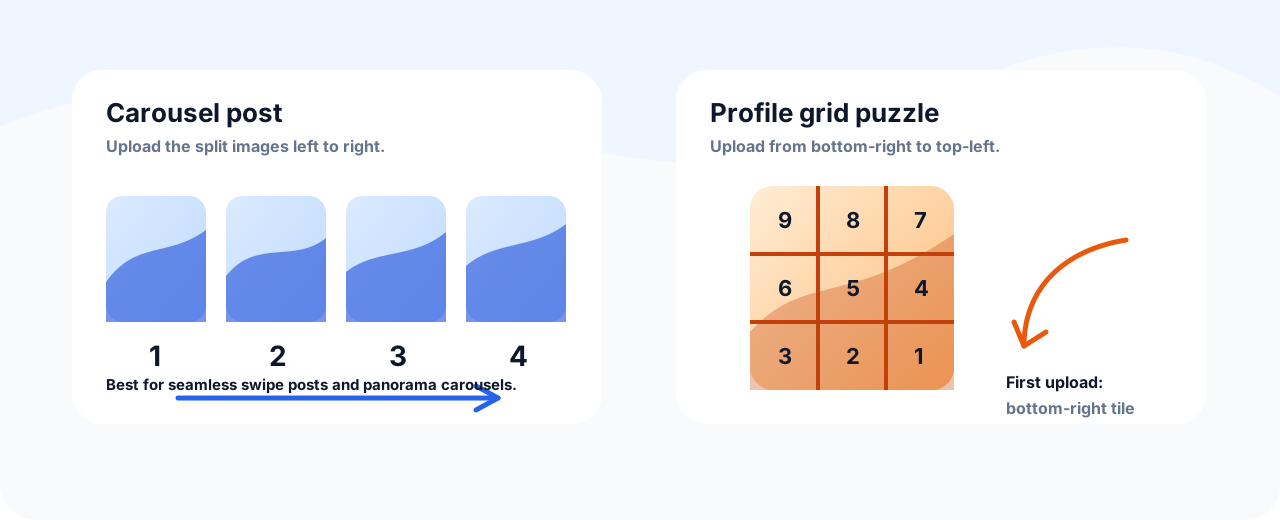
Posting a split image on Instagram is not difficult, but the upload order matters. A seamless carousel uses the natural reading order: slide 1, slide 2, slide 3, from left to right. A profile grid puzzle is the opposite: Instagram shows newer posts first, so you need to upload the last visible tile first.
This guide covers the common cases after you have already split the image: swipeable carousels, panorama carousels, 3-post rows, and 3x3 profile puzzles. It also includes the checks that prevent blurry files, broken crops, and grids that shift after one extra post.
Choose the posting style before you upload
Carousel or panorama carousel
Use this when you want one post that people swipe through. Upload all slides inside the same Instagram post and keep the order left to right.
Profile grid puzzle
Use this when separate posts should form one large image on your profile. Upload in reverse visual order because the newest post appears first.
Three-post row
Use this for a simple banner across one profile row. Upload right piece first, center piece second, and left piece last.
Still need to create the split files?
Choose the tool that matches the posting style before following the upload order below.
3x3 Planner
Create nine profile-grid tiles and keep the reverse upload order close to the export step.
Carousel Splitter
Create one swipeable Instagram post with slides selected in normal left-to-right order.
Panorama Splitter
Turn a wide image into connected carousel panels before you post the sequence.
Upload order cheat sheet
The easiest way to avoid mistakes is to keep the exported file names numbered and check whether you are publishing one carousel post or multiple separate profile posts.
| Layout | Correct upload order | Why it works |
|---|---|---|
| Carousel slides | 1, 2, 3, 4... | The viewer swipes forward through one post, so natural order is correct. |
| Panorama carousel | Left panel to right panel | Each swipe reveals the next part of the same wide scene. |
| 3-post profile row | Right, center, left | The newest post lands at the left side of the visible row. |
| 3x3 profile puzzle | Bottom-right, bottom-center, bottom-left, middle-right, middle, middle-left, top-right, top-center, top-left | Instagram stacks newer posts before older posts in the profile grid. |
How to post a split image as a carousel
- 1 Open Instagram and start a new post.
- 2 Choose the multiple-selection option before selecting files.
- 3 Select the split images in numbered order, starting with slide 1.
- 4 Check the preview and make sure each slide uses the same crop ratio.
- 5 Add your caption, cover idea, and publish as one carousel post.
How to post a split image as a profile grid
- 1 Open the folder with your exported tiles and confirm every file has the same size.
- 2 Start with the tile that should appear last visually: for 3x3, that is the bottom-right tile.
- 3 Upload each tile as a separate post, working right to left across the bottom row, then the middle row, then the top row.
- 4 Avoid posting anything else between the tiles, or the puzzle will shift.
- 5 After publishing, open your profile and confirm the large image assembled correctly.
Final checklist before publishing
- Use one file format for the full set, preferably JPG for photos or PNG/WebP for text-heavy graphics.
- Keep every tile or slide the same pixel size.
- Do not edit one tile separately after export unless you make the same edit to all tiles.
- Preview the first carousel slide as a standalone hook because it decides whether people swipe.
- For profile grids, prepare captions before uploading so you can post the pieces quickly.
- Save the original full image in case you need to re-export after checking the mobile preview.
Common problems and fixes
The grid is in the wrong order
Delete the affected posts before they get engagement, then re-upload from the last visible tile to the first visible tile.
Instagram cropped the edges
Re-export using a safer center area. Keep text, logos, and faces away from the outside edges and cut lines.
The carousel loses the seamless effect
Check that every slide has the same ratio and that you selected the files in the exact numbered order.
Posting Split Images on Instagram FAQ
Should I upload split images as one post or separate posts? ▼
Use one carousel post for a seamless swipe effect. Use separate posts only when you want the images to form a profile grid puzzle.
What is the correct order for a 3x3 Instagram grid? ▼
Upload bottom-right first, then bottom-center, bottom-left, middle-right, middle, middle-left, top-right, top-center, and top-left last.
What is the correct order for a split carousel? ▼
Upload the files in normal left-to-right order as slide 1, slide 2, slide 3, and so on inside the same post.
Why did my Instagram grid shift? ▼
A grid puzzle shifts when another post is published before the full set is complete or when you add a new post above the puzzle later.
Can I mix square and portrait images in the same carousel? ▼
It is safer not to. Instagram may crop the carousel based on the first selected file, so keep every slide the same ratio.