Instagram profile grid preview
Instagram Feed Planner
Preview your future posts in a 3-column Instagram profile grid before you publish, rearrange, or hand a campaign to a client.
Browser-only feed preview
Instagram profile grid preview
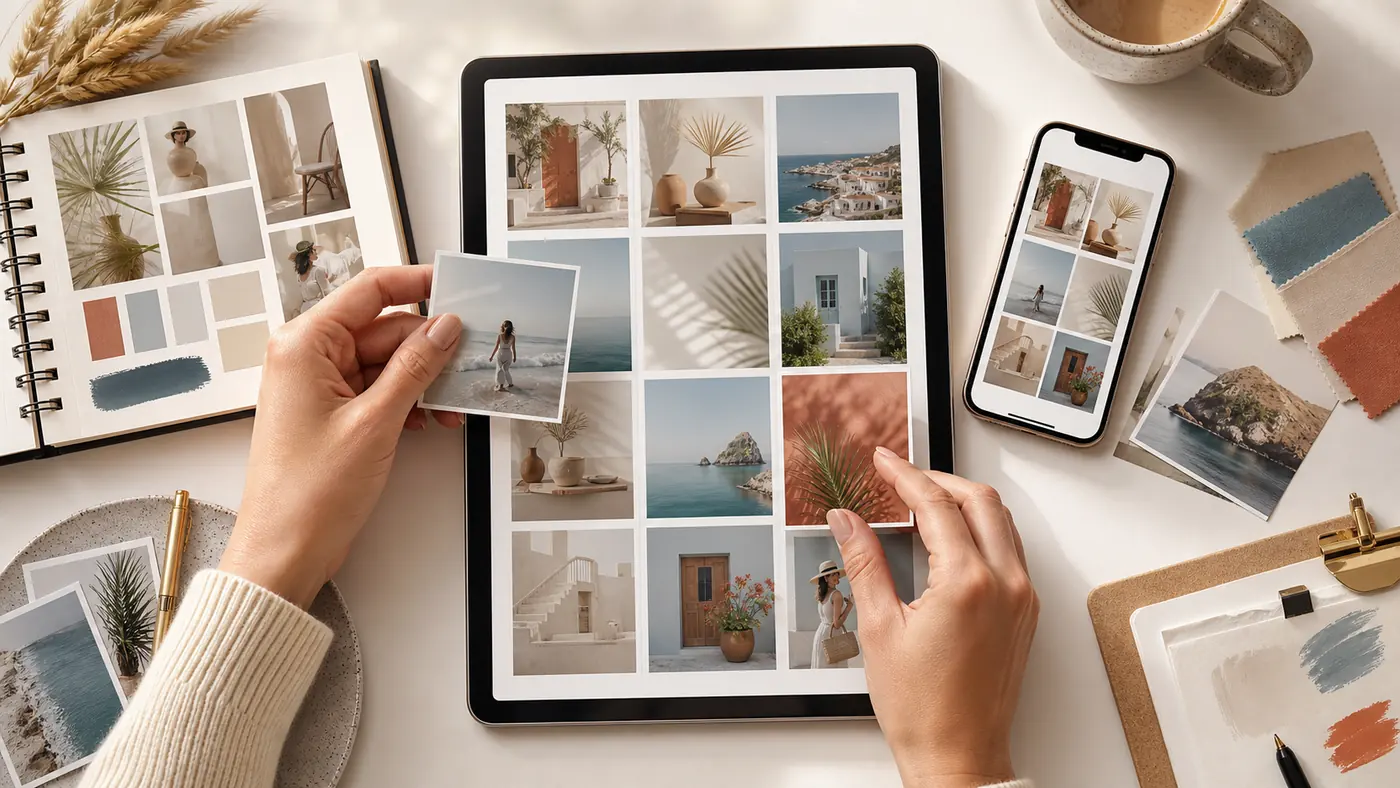
Upload future posts, drag them into order, and export a clean 3-column mockup before anything goes live.
Add images to plan your feed
JPG, PNG, WebP, GIF, BMP, or AVIF. Images stay in your browser.
0 photos · 9 slots
Drag cards to reorder. On mobile, use the arrow buttons on each card.
Reviewed June 2026
Plan the profile grid before you publish
An Instagram feed planner solves a different problem from an image splitter. A splitter turns one image into tiles. A feed planner helps you decide how a group of future posts will look together on the profile before you commit to a sequence. That difference matters for creators, social media managers, photographers, shops, and agencies that need a clean first impression when someone opens the profile.
This planner is intentionally browser-based and lightweight. Upload the photos you are considering, drag them into a 3-column order, switch between square and profile-style preview crops, then download a mockup PNG. The tool does not connect to Instagram, schedule posts, or upload your images to a server. It gives you a fast private workspace for visual decisions before you post or rearrange anything in the app.
Why this is not another Instagram grid splitter
Searchers who type Instagram feed planner, Instagram grid planner, profile grid preview, or feed preview are usually not asking for a 3x3 puzzle export. They want to compare several posts, decide what should sit next to what, and see whether the whole profile feels consistent. That is why this page focuses on planning and previewing instead of cutting one image into multiple files.
Multiple future posts
Upload separate images for launches, portfolio rows, product drops, travel edits, or campaign blocks. The board shows how those independent posts work together.
Drag-and-drop order
Move a post earlier or later without deleting anything. On mobile, the arrow controls make reordering possible even when drag gestures are awkward.
Mockup export
Download a clean PNG preview for approval, client review, mood boards, or your own posting checklist before you open Instagram.
A practical feed planning workflow
Collect the next 9 to 15 posts
Start with the actual images you might publish: product shots, reels covers, quotes, portraits, campaign graphics, or behind-the-scenes photos. A planner is most useful when the preview uses real upcoming content instead of placeholders.
Switch between square and profile crop
Some accounts still think in square tiles, while many profiles now need a taller visual rhythm. Use both preview modes to catch awkward crops, repeated colors, and heavy blocks before the posts go live.
Check rows, not only individual posts
A single image can look strong alone but weak beside two similar colors. Look for alternating close-ups and wide shots, text and photography, bright and quiet blocks, and balanced negative space across each row.
Export the mockup
Save the PNG preview as a reference. If you work with clients or a team, the mockup is easier to review than a folder of loose image files.
Best use cases for a profile grid preview
- Launching a product line and deciding which hero images belong in the first row.
- Planning a photographer or designer portfolio so the profile feels curated instead of random.
- Checking a campaign before handing assets to a client, assistant, or social media manager.
- Balancing colors for lifestyle, travel, fashion, food, interior, or creator accounts.
- Previewing the visual effect of a profile-grid reorder or a new posting sequence before making changes.
Feed planning tips that keep users from bouncing
Use contrast between neighboring posts
Avoid placing three similar close-ups in the same row unless the repetition is intentional. Alternating subject distance makes the grid easier to scan.
Keep text-heavy graphics away from each other
Quote cards, promo cards, and announcement graphics can make a profile feel noisy when they cluster. Place them with breathing room.
Plan the next row before posting the current one
A grid can look polished for one week and messy the next if the following posts were not planned. Keep at least one row ahead.
Use splitters only when you need exports
If one large visual needs to become tiles, use the Instagram Grid Maker or 3x3 planner. If you already have separate photos, use this feed planner instead.
Use the right tool for the next step
This planner keeps people in the planning workflow, then sends them to the correct splitter or guide only when they actually need it.
Instagram Grid Maker
Split one artwork into profile-grid tiles or create Instagram-ready exports.
3x3 Grid Planner
Use this when your goal is one image split into a nine-post puzzle feed.
Carousel Splitter
Switch here when the layout should become one swipeable Instagram carousel.
Grid Size Guide
Check square, portrait, and profile crop sizes before you prepare assets.
Instagram Feed Planner FAQ
What is an Instagram feed planner?
An Instagram feed planner is a visual workspace where you arrange upcoming posts in a 3-column profile preview before publishing. It helps you judge order, color balance, crop, and campaign flow.
Is this the same as an Instagram grid maker?
No. A grid maker usually splits one image into several tiles. This feed planner arranges multiple separate images so you can preview how your profile will look.
Does the tool upload my photos?
No. The preview runs in your browser. Images are loaded locally so you can plan privately without creating an account or sending files to a server.
Can I drag posts into a new order?
Yes. On desktop you can drag image cards into a new position. On mobile you can use the arrow buttons on each card to move posts earlier or later.
Can I download the profile preview?
Yes. Use the Download PNG mockup button to save the current grid preview as a single image for review, planning, or client approval.
Can this planner schedule posts to Instagram?
No. This is a private preview and planning tool, not a scheduler. It helps you decide the order before you post or use a separate scheduling workflow.
Should I use square or profile crop preview?
Use square preview when your content is designed around 1:1 posts. Use profile preview when you want to judge a taller profile-grid rhythm and avoid awkward portrait crops.
What should I do if I need to split one image into nine posts?
Use the 3x3 Instagram Grid Planner or Instagram Grid Maker. This page is better when you already have multiple separate images and want to plan their order.