Image Compressor Online Free
Compress image files in your browser—JPG, PNG, WebP. Batch up to 20 files, no sign up, no server upload. Built for large photos before you split image grids.
Drop images to compress
Batch up to 20 · JPG, PNG, WebP · Desktop 150MB · Mobile 80MB each
100% private — runs in your browser
Queue (0)
Compression settings
Lower quality = smaller file (JPG/WebP).
Advanced options
Large photos are resized during decode so phones stay stable.
One click: compress, then download (ZIP if multiple).
Back to split toolAfter you compress, continue on Split Image · Instagram Grid Maker · Carousel Splitter
What is this image compressor?
This image compressor is a free online tool that reduces photo file size without sending your pictures to a remote server. Creators use an image compressor when split tools, email, or social platforms reject heavy exports. Use it to compress image files—especially large PNGs—then download a lighter JPG or WebP ready for Instagram grids, carousels, or printing workflows. The same image compressor also helps when you only need a smaller attachment, not a full design rewrite. Whether you export from Figma, Lightroom, or a phone camera, an image compressor that runs locally keeps you in control of quality and privacy while you prepare assets for publishing.
Unlike many compress image online services that upload files to a cloud queue, this image compressor processes everything on your device. That privacy model matches Splitimage.im: your photos are not stored on our infrastructure and are not used to train models. You can batch up to twenty files, set quality, and optionally aim for a target size such as 100 KB, 500 KB, or 1 MB with this free image compressor. Pair the image compressor with our split and grid tools when a 50 MB handoff limit blocks your workflow—compress first, then tile. Over time, keeping a reliable image compressor bookmarked saves repeated re-exports from design apps just to pass platform size checks.
Upload limits on social networks, email providers, and form hosts are usually far below raw camera exports. A typical phone JPEG sits between two and twelve megabytes, while a design PNG can exceed thirty or forty megabytes without adding useful pixels for Instagram. When you prepare tiles for a profile grid, the platform only needs about one thousand eighty pixels on the short edge of each post. Keeping intermediate working files light also speeds ZIP packaging and reduces memory pressure on mid-range phones. Supported formats include JPEG, PNG, and WebP, with optional quality and long-edge controls under advanced settings. Desktop sessions can accept larger inputs than mobile sessions because browser memory budgets differ. If decoding fails, export a standard JPEG from your gallery or photo editor and try again. After you finish, continue to the split tool, grid maker, or carousel splitter on the same site without creating an account. Processing stays on your device: nothing is stored on our servers for training or later retrieval. Batch mode processes files one after another so a single heavy image is less likely to freeze the tab. Target size presets around one hundred kilobytes, two hundred kilobytes, five hundred kilobytes, and one megabyte help match common form caps. WebP often wins for web delivery, while JPEG remains the most compatible download when you need universal support. PNG remains available when you need lossless edges or transparency, though photo subjects usually shrink more as JPEG. The hard limit on the split and grid tools remains fifty megabytes, which is why a compression step exists in the workflow. Desktop acceptance is about one hundred fifty megabytes and mobile about eighty megabytes for this page alone. Upload limits on social networks, email providers, and form hosts are usually far below raw camera exports. A typical phone JPEG sits between two and twelve megabytes, while a design PNG can exceed thirty or forty megabytes without adding useful pixels for Instagram. When you prepare tiles for a profile grid, the platform only needs about one thousand eighty pixels on the short edge of each post. Keeping intermediate working files light also speeds ZIP packaging and reduces memory pressure on mid-range phones. Supported formats include JPEG, PNG, and WebP, with optional quality and long-edge controls under advanced settings. Desktop sessions can accept larger inputs than mobile sessions because browser memory budgets differ. If decoding fails, export a standard JPEG from your gallery or photo editor and try again. After you finish, continue to the split tool, grid maker, or carousel splitter on the same site without creating an account. Processing stays on your device: nothing is stored on our servers for training or later retrieval. Batch mode processes files one after another so a single heavy image is less likely to freeze the tab. Target size presets around one hundred kilobytes, two hundred kilobytes, five hundred kilobytes, and one megabyte help match common form caps. WebP often wins for web delivery, while JPEG remains the most compatible download when you need universal support. PNG remains available when you need lossless edges or transparency, though photo subjects usually shrink more as JPEG. The hard limit on the split and grid tools remains fifty megabytes, which is why a compression step exists in the workflow. Desktop acceptance is about one hundred fifty megabytes and mobile about eighty megabytes for this page alone.
How to compress image online in 3 steps
Same simple flow as our split tools: upload, adjust, download. Works on desktop and mobile browsers with a private image compressor.
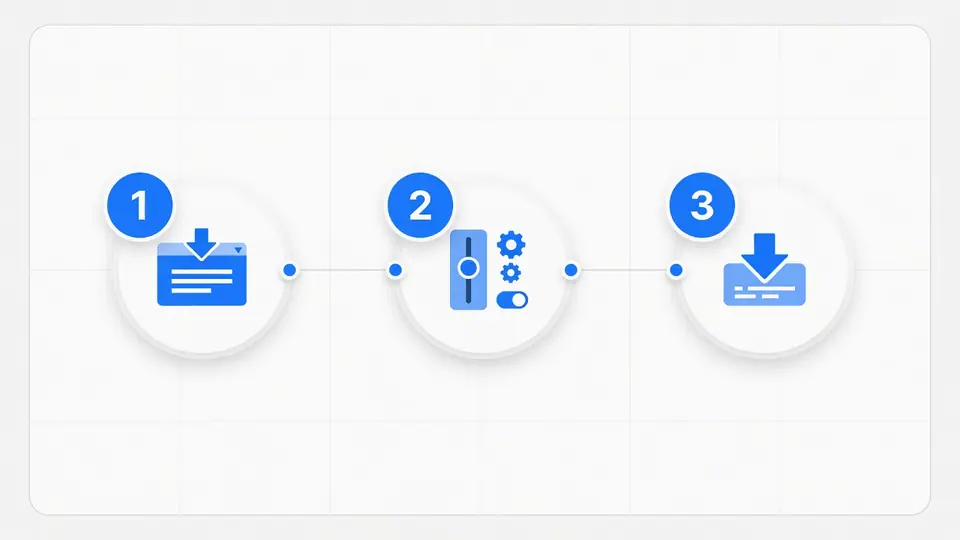
Upload your photo
Drag and drop or click to browse. Support for JPG, PNG, and WebP. Desktop allows very large files; mobile uses a safer limit. You can queue multiple images in this image compressor.
Pick format & quality
Choose JPG, WebP, or PNG. Set quality, optional max long edge, or a target size like 500KB or 1MB when you need a hard cap. Advanced options stay collapsed until you need them.
Compress & download
One click runs the image compressor and starts the download. Multiple files become a ZIP. Then upload the smaller file to our split image or grid tools if you still need tiles.
Compress PNG, JPG, and large exports
Design tools often export huge PNGs. A private image compressor online free path is the fastest fix before social posting. If you searched for an image compressor free of sign-up walls, this page is built for that job. Camera phones and raw-to-JPEG pipelines also produce multi-megapixel files that benefit from an image compressor with long-edge control so uploads succeed without reopening your editor.
Shrink files for Instagram and email
Platforms and forms reject oversized attachments. Use this tool to compress jpg online free or convert heavy PNG photos to JPG/WebP so uploads succeed the first time with a reliable image compressor. Target sizes from about 100 KB to 1 MB cover most email, CMS, and social prep cases without guessing quality sliders alone.
- ✓ Target presets around 100KB, 200KB, 500KB, and 1MB
- ✓ Max long-edge control for multi-megapixel cameras
- ✓ Clear before/after size so you know the image compressor worked

Private by design
Unlike many compress image online services that upload files to a cloud queue, processing stays local. That matches the privacy model of Splitimage.im: your photos are not used to train models and are not stored on our infrastructure when you use this image compressor. Client campaigns, unreleased product shots, and personal albums stay on your device while the image compressor runs in the browser tab.
- ✓ No account wall
- ✓ No third-party upload hop for compression
- ✓ Same product family as our split and grid tools
Large files: desktop vs mobile
File size and pixel size are different. A 60MB PNG can decode into hundreds of megabytes of RAM. This image compressor uses browser APIs such as createImageBitmap with resize when available, so oversized sources are scaled during decode instead of loading full resolution first. That is why a serious image compressor for large camera files should resize during decode, not only tweak JPG quality. Understanding that difference helps you pick max long edge and target size wisely inside the image compressor UI.
Desktop allows larger inputs (about 150MB) and higher default edges for sharper results. Mobile uses a lower cap (about 80MB) and a 4096px long-edge default to reduce crashes on phones. If a device still fails, re-export as JPG from your camera roll or photo editor, then run the image compressor again. Batch mode processes up to 20 files one after another so memory pressure stays predictable on mid-range phones.
Our split and Instagram grid tools keep a 50MB hard limit for stability. When you see file too large there, open this image compressor, download the lighter file, and re-upload. That workflow is intentional—not a dead end—and keeps the image compressor as the dedicated heavy-file path on Splitimage.im. The same handoff works for carousel and print-oriented split pages when oversized masters block the first step.
When to use an image compressor
Before splitting for Instagram
Run the image compressor on assets over the 50MB split limit, then use the grid or carousel tools for numbered tiles.
Website and portfolio uploads
Use an image compressor to reduce PNG UI exports and camera JPEGs so CMS and hosting forms accept them quickly.
Email and form size caps
Point the image compressor at common caps (for example under 1MB or a few hundred KB) with the optional target size control.
Client-safe private work
A local image compressor keeps unreleased campaigns off cloud queues, with fewer questions about who stored the file.
Image compressor FAQ
Is this image compressor free? +
Yes. This free image compressor runs in your browser with no account, no watermark, and no daily quota on the tool itself.
Do I need to sign up to compress image online? +
No sign up is required. Open the page, drop a photo, compress, and download. Nothing is stored on our servers.
Are my photos uploaded to a server? +
No. Compression happens entirely on your device. Your image never leaves the browser tab, which is ideal for private or client work.
How do I compress JPG online free to about 100KB or 500KB? +
Choose JPG or WebP, set quality lower if needed, and pick a target size such as 100 KB or 500 KB. The image compressor reduces quality and, when necessary, dimensions to approach that size.
Can I compress PNG online and keep transparency? +
PNG output is available for lossless needs. For the smallest files, convert PNG photos to JPG or WebP. Transparency is best preserved with PNG or WebP.
What is the maximum file size? +
Desktop accepts images up to about 150MB; mobile up to about 80MB. Very large files are decoded with a max long edge so phones stay stable. Split tools on this site still cap at 50MB—compress first with this image compressor, then upload there.
Why is my image still large after compress? +
Huge pixel dimensions keep files big even at medium quality. Lower the max long edge (for example 2048 or 1920) or pick a target size. PNG is often larger than JPG for photos.
Does this work on mobile phones? +
Yes. Mobile uses a safer path with a lower file cap and a 4096px long-edge default. If a phone runs out of memory, export JPG from your gallery first or use a desktop browser with this image compressor.
How do I use this with the split image tool? +
If split or grid tools say the file is over 50MB, open this image compressor, download the smaller file, then upload it on the split page. Same site, two steps.
Is WebP better than JPG for compression? +
WebP often beats JPG at similar quality for web and social prep. JPG remains the most compatible download if you need universal support after using the image compressor.
Will compression reduce image quality a lot? +
Default quality around 80–85% is usually fine for Instagram and web. Start high, check the preview, then lower only if you need a smaller download from the image compressor.
Can I compress multiple images at once? +
Yes. Add up to 20 images in one queue, compress all with the same settings, then download each file or a single ZIP. Files are processed one after another so phones stay more stable.
Ready to compress image files?
Use the free image compressor above, download the result, then continue to split or grid tools when you need tiles. Bookmark this image compressor when large PNG exports keep blocking your workflow.
Back to compressor